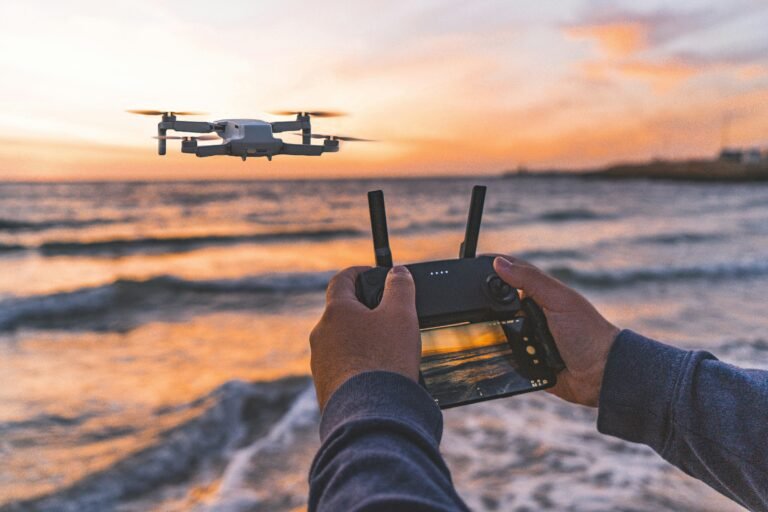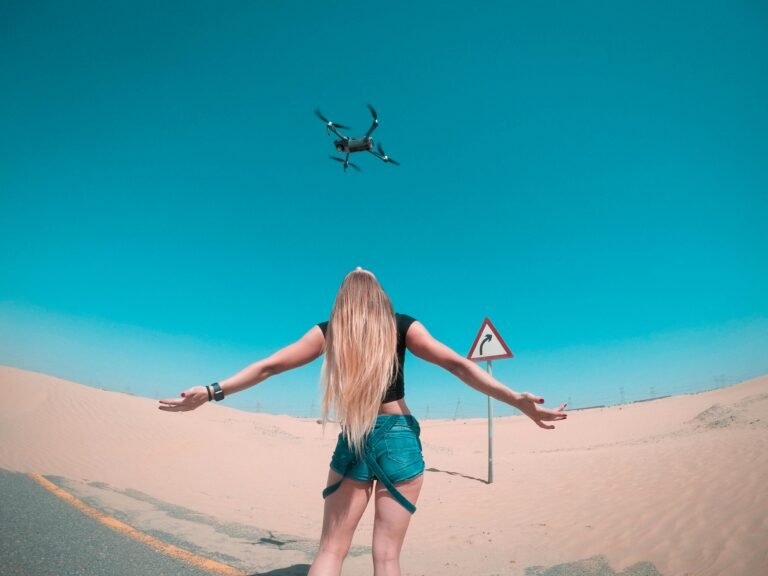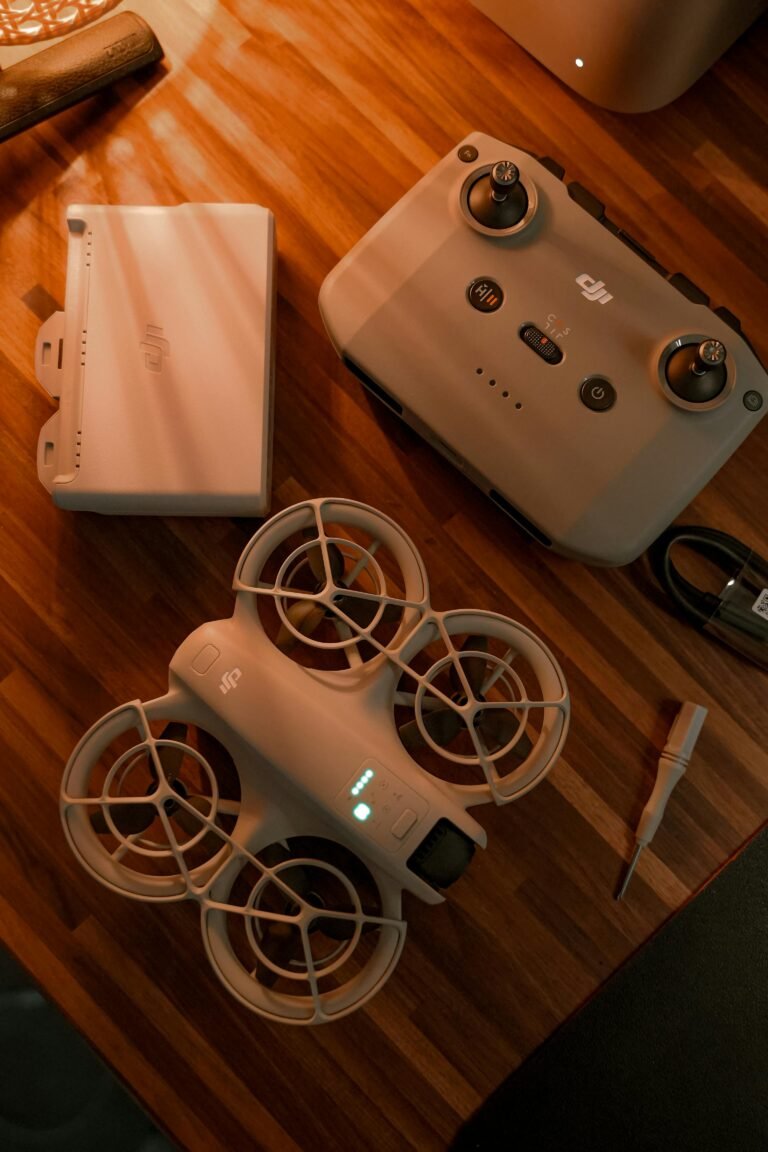



A single smartphone can feel like a cockpit for today’s consumer drones, turning basic flights into cinematic stories. The DJI Fly App sits at the center of that experience, guiding pilots from setup to shot with a touch of a finger.
Recent Trends
- Growing demand for mobile-first drone control
- In-app flight tools boost safety and efficiency
- OEMs expanding learning resources inside apps
dji fly app tutorial
For many pilots, the app is less about the joystick and more about the workflow: from linking the drone to a device, to dialing in camera settings, to sharing the result in seconds. The interface is designed to keep essential controls visible while reducing distractions.
What the app does is straightforward: live camera feed, telemetry, and a suite of safety and creative tools all in one place. The ecosystem also connects to cloud services for firmware updates and a unified user account, which helps with device activation and flight logs. According to Techtimes, the DJI Fly App’s emphasis on learning resources and cloud-connected features reflects DJI’s broader strategy to turn pilots into confident operators.
The first step is to ensure your device is compatible and that you download the app from official sources. After installing, you log in to a DJI account to synchronize flight records, product activation, and services.
Key Settings for Safe Flights
Before takeoff, pilots should review safety parameters like maximum altitude and maximum distance. Return-to-Home (RTH) altitude should be set high enough to clear nearby obstacles. Enabling beginner or limited modes can reduce speed and responsiveness for new flyers, while obstacle avoidance settings give the drone a safety net in cluttered environments.
- Maximum flight altitude and distance
- Return-to-Home altitude
- Beginner mode and throttle limits
- Obstacle avoidance sensitivity
These settings act as a safety checklist rather than a one-time setup. For defense planners or city pilots, they define how quickly a flight can adapt to changing conditions and still maintain control.
Camera and Gimbal Settings for Pro Footage
Beyond safety, image quality starts with camera controls. The DJI Fly App offers automatic and Pro modes to tune ISO, shutter speed, white balance, resolution, and frame rate. For cinematic results, pilots aim for a low ISO, a shutter that roughly matches the frame rate, and thoughtful white balance. ND filters help maintain exposure in bright light. Gimbal parameters like tilt speed and smoothness shape motion, turning handheld-like moves into polished shots.
Intelligent Flight Modes and Drone Flight Tools
One of the app’s biggest advantages is a library of automated features. QuickShots like Dronie, Rocket, Circle, and Helix create dynamic angles with minimal effort. More advanced tools include FocusTrack and ActiveTrack for following subjects, Point of Interest for circling a target, and Waypoints for planned routes on supported models. This blend of automation and manual control lets operators conserve battery while preserving creative control. For creators, the message is simple: automate the boring parts, own the timing on the rest.
Flight records and in-app learning tools help pilots track progress. The app stores logs that show flight paths, durations, and telemetry. Some versions offer Fly Spots and DJI Academy guides that distill tips into snackable content. These features encourage practice and ongoing improvement, keeping skills sharp between shoots.
Editing and Sharing Footage Inside the App
For quick turnaround content, the built-in editor can trim clips, stitch timelines, and add music. It complements a mobile-first workflow, letting you publish to social platforms such as Instagram or YouTube without a laptop. For travelers and social creators, this integration reduces friction from capture to publication.
Troubleshooting Common DJI Fly App Issues
Even polished software can stumble. Typical culprits include the app not launching, the drone not connecting, laggy video, or missing features after updates. Start with simple steps: restart devices, verify connections, and ensure firmware is current. If issues persist, clearing the app cache or reinstalling can help. Always consult official compatibility lists and known issues after OS updates on iOS or Android.
Frequently Asked Questions
- Can the DJI Fly App be used offline? Yes, core flight functions work offline once maps are cached and firmware is updated.
- Is there a way to test settings without risking a real flight? Use beginner modes or a safe, open area to practice.
- Where can I find more learning resources? Look for DJI Academy and in-app Fly Spots.
Conclusion
Mastering the DJI Fly App is less about memorizing menus and more about building a reliable, creative workflow. The app’s safety settings, camera controls, and intelligent flight tools give operators a practical ladder from casual flyer to confident shooter. For professionals and hobbyists alike, the payoff is smoother flights, safer routines, and richer footage that can be published with minimal extra steps.